![Zones_logo_dark_TM@2x.png]](https://l.myzone.org/hs-fs/hubfs/Evolution%20Branding/Zones_logo_dark_TM@2x.png?height=28&name=Zones_logo_dark_TM@2x.png)
As the owner or general manager of your club, it's important to grant your key staff members access to the Management Portal for Myzone. This allows them to efficiently manage tasks such as placing belt orders, and creating classes. Follow these steps to ensure your staff members have the necessary permissions for their roles:
Determine the appropriate access level for each staff member. There are two levels to choose from: Owner or Coach.
- Owner Access: Suitable for owners, general managers, and fitness directors. It provides full access to the menu, including ordering, running member reports, and more.
- Coach Access: Ideal for trainers, group exercise instructors, and coaches. It allows access to specific menu items such as MZ-Chat, Classes, Coach Settings, Support, and Marketing Portal.
Please note that only a staff member with owner's access can grant Management Portal permissions to others. To add owner's access for another user, please reach out to Myzone support. Raise a Support ticket.
Login to your Myzone account
Login via https://manage.myzone.org then select Users from the left hand side menu.
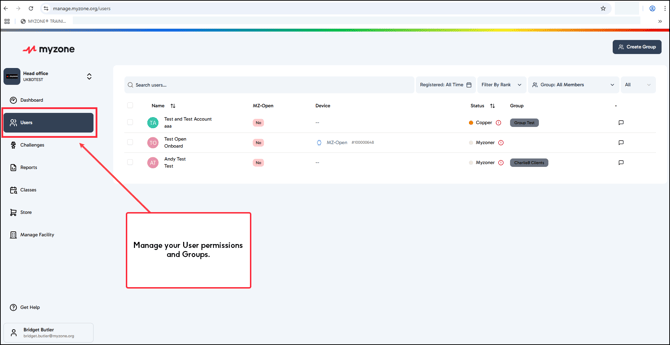
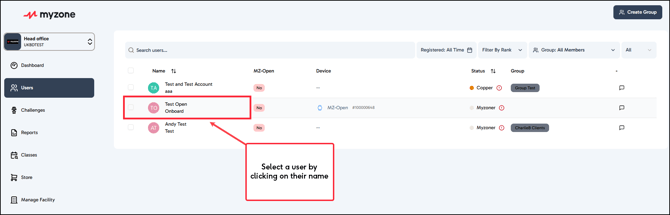
Search for the profile of the staff member you want to assign permissions to and select the user by clicking on their name.
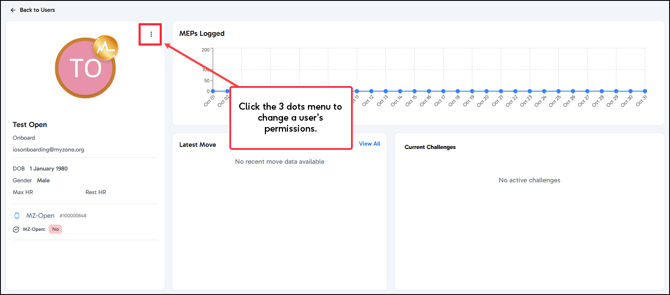
You will be directed to the profile page for that user. Click the 3 dots menu above the user name to change their permissions.
Select Change permissions from the menu items listed. 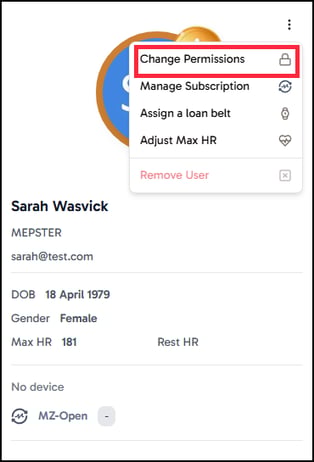
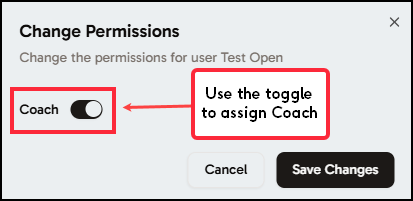
You can use the toggle button to assign or remove Coach permissions. Make sure to click save to confirm any changes you make.
Filtering User list by permissions
To help manage your user list, you can now apply a filter to show just the Coaches for the facility. From the User page, you will see a dropdown option labelled Role, along the top of the list of users. You can apply a filter to either show all members, or coaches.
NB Filters are sticky, meaning that your filter will be remembered until you remove it.