![Zones_logo_dark_TM@2x.png]](https://l.myzone.org/hs-fs/hubfs/Evolution%20Branding/Zones_logo_dark_TM@2x.png?height=28&name=Zones_logo_dark_TM@2x.png)
Where to find it
Facility Settings > Communications > Email Template.
What you can do
Configure your facility's email template by adding a personal message from your facility that gets attached to every summary email users receive after they complete a workout. Upload an Email Footer Image that attaches at the bottom of Myzone emails for additional branding or facility advertising.
Where to find it;
Navigate to Facility settings > Communications > Email template
The right hand side window will open, where you can add a new image to appear in all emails you send from this Facility, edit any existing images and add a personalized message to an email if required.
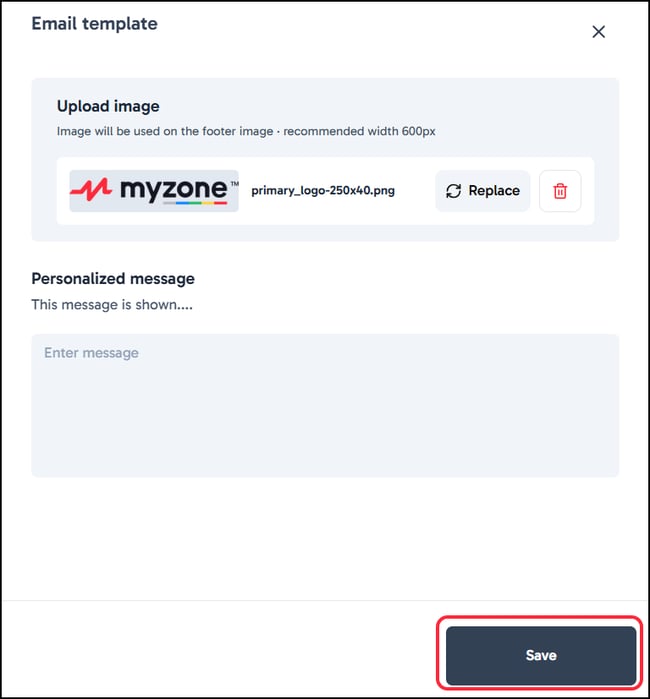
Make sure to click Save to confirm any changes you have made.