![Zones_logo_dark_TM@2x.png]](https://l.myzone.org/hs-fs/hubfs/Evolution%20Branding/Zones_logo_dark_TM@2x.png?height=28&name=Zones_logo_dark_TM@2x.png)
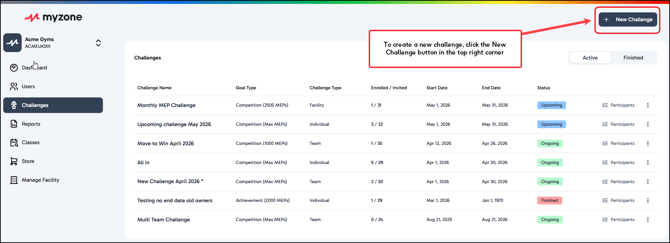
From the main Challenges page, click the + New Challenge button in the top-right corner.
This will open the **Create New Challenge** form from the right-hand side of your screen.
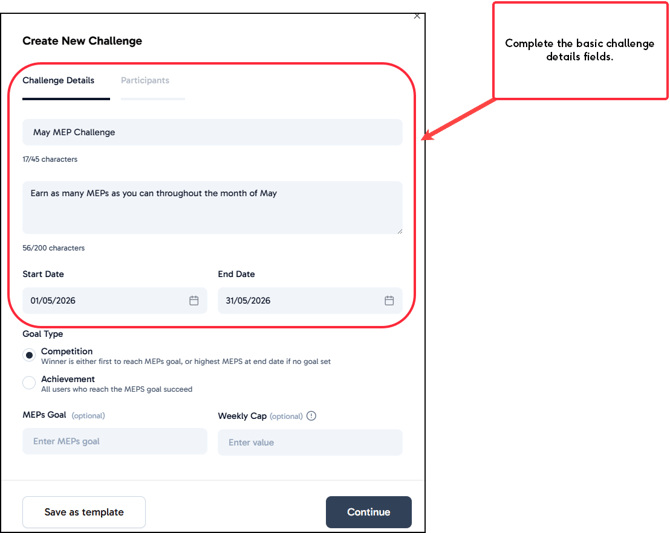
Challenge Details
Begin by entering the basic information about your challenge. Clear and accurate details help members understand how to take part and what they are working toward.
Name: Give your challenge a clear, motivating title so participants immediately understand the focus.
Description: Explain the purpose of the challenge, how it works, and what participants can expect. Include any rules, targets, and rewards. This information will be visible when a member receives a challenge invite.
Start & End Dates: Set the dates that define when the challenge begins and ends. This helps members plan their effort and track progress over a specific period.
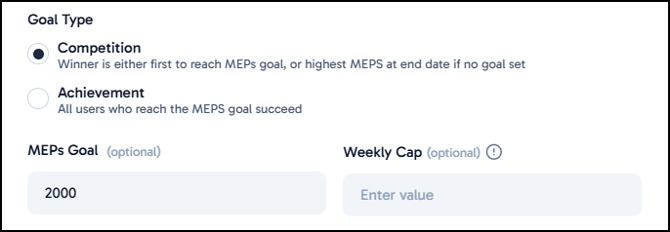
Goal Type:
There are 2 different goal types to choose from for your challenge;
- Competition - Winner is either first to reach MEPs goal, or highest MEPS at end date if no goal set
- Achievement - All users who reach the MEPS goal succeed
Simply select the goal type you want for your challenge.
If required, you can then enter a total MEPs Goal, or leave this blank if not required.
Weekly Cap - You can set a cap on the amount of MEPs that count each week. This can help to keep all members motivated in taking part.
Scorable locations:
Decide where MEPs must be earned in order to count toward the challenge.
In Club – Only MEPs recorded through your club’s Myzone receivers will be included. This setting is useful when you want to highlight in-club visits and participation. Please note that this option excludes members using Myzone Go who only sync their effort data via the Myzone app.
Anywhere – MEPs earned in any location will count toward the challenge, whether members are training in the club, at home, or outdoors. This option supports more flexible participation and encourages activity beyond the gym.
Scorable Zones
Choose which heart rate zones will contribute MEPs toward the challenge. This allows you to focus the challenge on specific training intensities. Any MEPs earned in zones that are not selected will not be included in the challenge total.
Simply select a zone by clicking the corresponding coloured box.
Challenge Type
Choose how you would like participants to engage with the challenge. This setting shapes the level of collaboration and competition.
Individual – Each person takes part on their own, earning MEPs toward their personal challenge result. This format is helpful when you want members to focus on individual progress and accountability.
Teams – Participants are grouped into teams that compete against one another. Team challenges encourage collaboration, peer support, and friendly competition between groups.
Facilities – Your facility competes against another facility, with members’ MEPs contributing to their home facility's result. This is ideal for multi-site operators or partner clubs that want to build community and engagement across locations.
More details about different challenge types can be found here.
Click Continue to progress to adding participants.
Click Save as Template to save these challenge details as a template that can be quickly deployed for future challenges.