![Zones_logo_dark_TM@2x.png]](https://l.myzone.org/hs-fs/hubfs/Evolution%20Branding/Zones_logo_dark_TM@2x.png?height=28&name=Zones_logo_dark_TM@2x.png)
From the Manage portal homepage, select Members from the left hand side menu.
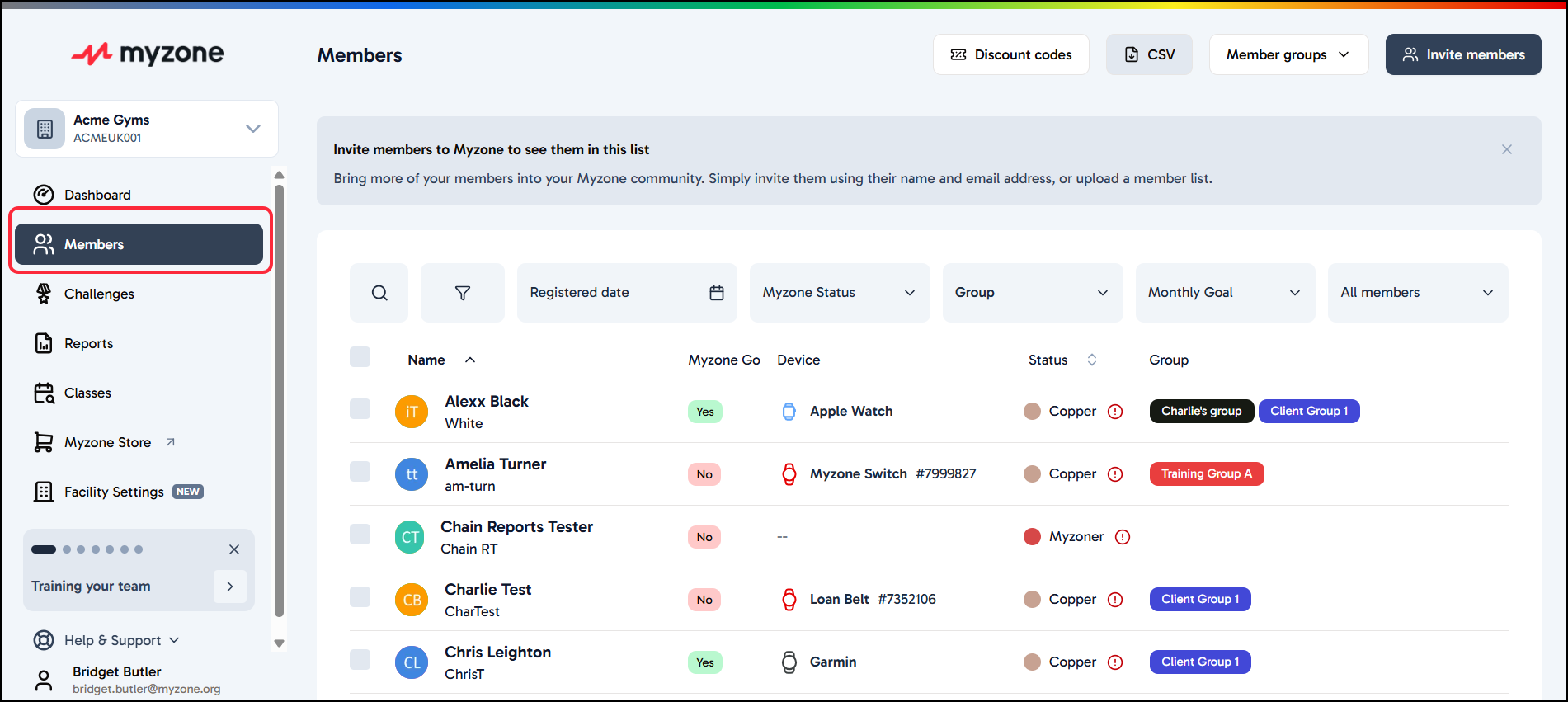
From the list of Members, select the individual you wish to remove by clicking on their name. Remember you can use the search field to find a member by their name or device ID.
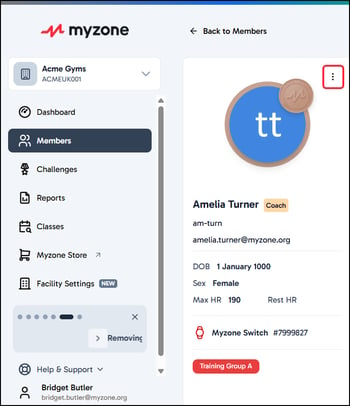
From the Member's profile page, click the 3 dot menu found to the right of the Member's name.
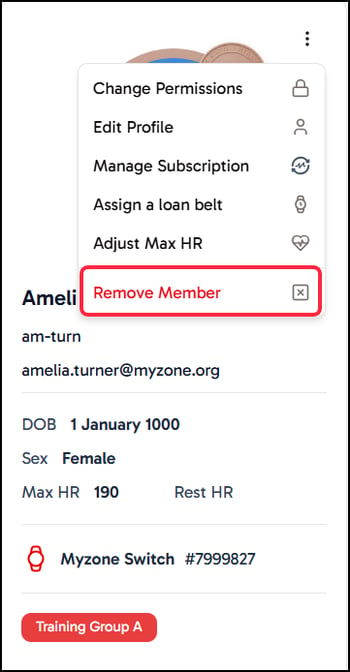
From the list of actions provided, you will find Remove member at the bottom of the menu. Click this to start to the removal process.
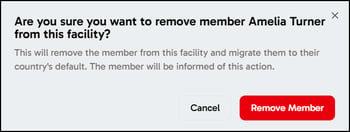
There is a confirmation step, to make sure you are removing the right member. Make sure to click the final Remove button to finalise the action.
NB: The Member will be made aware of this action and will automatically be moved to a default facility based on their country.