![Zones_logo_dark_TM@2x.png]](https://l.myzone.org/hs-fs/hubfs/Evolution%20Branding/Zones_logo_dark_TM@2x.png?height=28&name=Zones_logo_dark_TM@2x.png)
Adding Participants
The way you add participants to your challenge will depend on the type of challenge you are setting up - Individual, Teams or Facility v Facility.
Adding Participants to an Individual Challenge
For an individual challenge, you can decide whether you want to include all club members, or specific groups (as set up in the Users page - for guidance on how to create and manage groups check out this article)
To add individuals to a challenge, you can either Select all members or Select by group.
Select all members will add every gym member to the challenge.
Select by group allows you to only invite certain users to a challenge, using groups that you can create in the Users page of the Owner's portal. You can find more information about how to create user groups in this article.
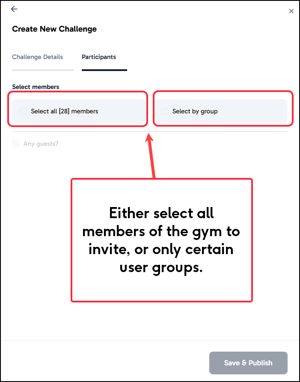
Click Save & Publish once participants have been added.
Adding Participants to a Team Challenge
Adding participants a Teams challenge can either be done manually, or by using the automatic team selector tool.
Automatic Selection: Simply fill in these 3 fields:
1. Choose members: Either all gym members, those at risk, or certain user groups.
2. Number of teams: Number of teams you want to create
3. Divide members by: How would you like to split the users, as laid out in the following table.
| Divide members by | Meaning |
| Number of MEPs this month | Members with higher and lower MEPs this month will be evenly distributed |
| All time MEPs | Members with higher and lower all time MEPs will be evenly distributed |
| At risk/Target | Members on target and at risk of achieving their monthly status will be evenly distributed |
| Status ranking | Members with higher and lower status will be evenly distributed |
| Split evenly | Members will be split evenly with no rules |
The teams will be automatically created based on your criteria. You can then rename the team names as you wish.
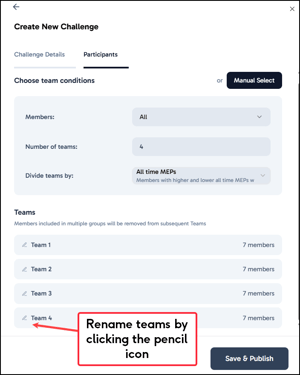
Manual team selection
Click Manual Select.
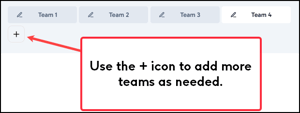
Click the + symbol to create as many teams as you need.
To add members to a team , highlight the team name then select the names from the list using the individual check boxes. As you move through the teams, the list will update to let you know if users have already been added to a team.
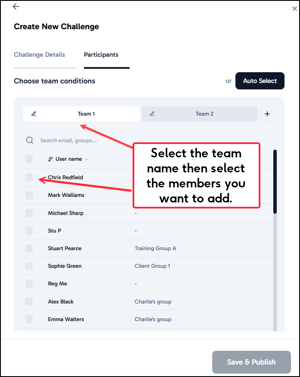
Click Save & Publish once your selections have been made.
Adding Participants to a Facility vs. Facility Challenge
There are 2 steps to adding participants to a Facility v Facility challenge;
1. Selecting the facility
2. Adding the participants
To select the Facility, you will need to know the exact Facility code.
Click the + icon to add a facility.
Enter the facility code in the search box provided.
Select the facility.
For your Facility, you will now need to add the participants you wish to invite to the challenge. The invited facility will manager their participants on their own side.